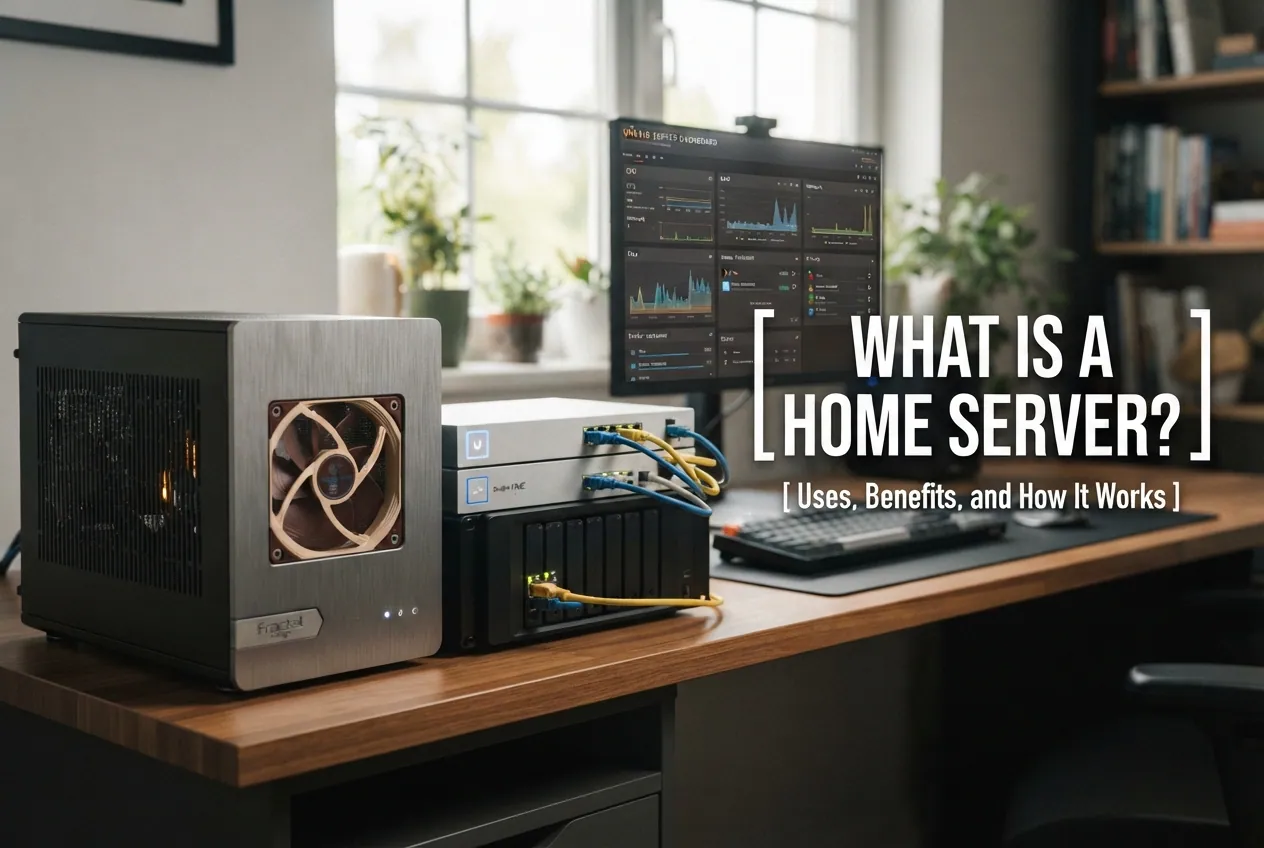
A home server is a computer or dedicated device that provides files, applications, and other services to devices in your home. It can help you back up photos, stream movies, share files, manage smart-home devices, or host multiplayer games.
You do not need an expensive server rack or advanced technical skills to get started. An old desktop computer, a small mini PC, or a dedicated network storage device may be enough, depending on what you want to do.
The best home server is the one that meets your needs without adding unnecessary cost or maintenance. Before buying anything, it helps to understand how a home server works, what you can use it for, and which hardware and software options make sense for beginners.
Short Definition
A home server is a computer or dedicated device that provides files, apps, and other services to devices on your home network. It can support storage, backups, media streaming, smart-home control, and more.
Experience
Practical Tech Tip: Start with one job, such as file sharing or media streaming, before adding more services. Check your hardware and software requirements first, and keep a separate backup because a server alone does not protect your data from drive failure or theft.
Home Server vs. NAS: Which Should You Choose?
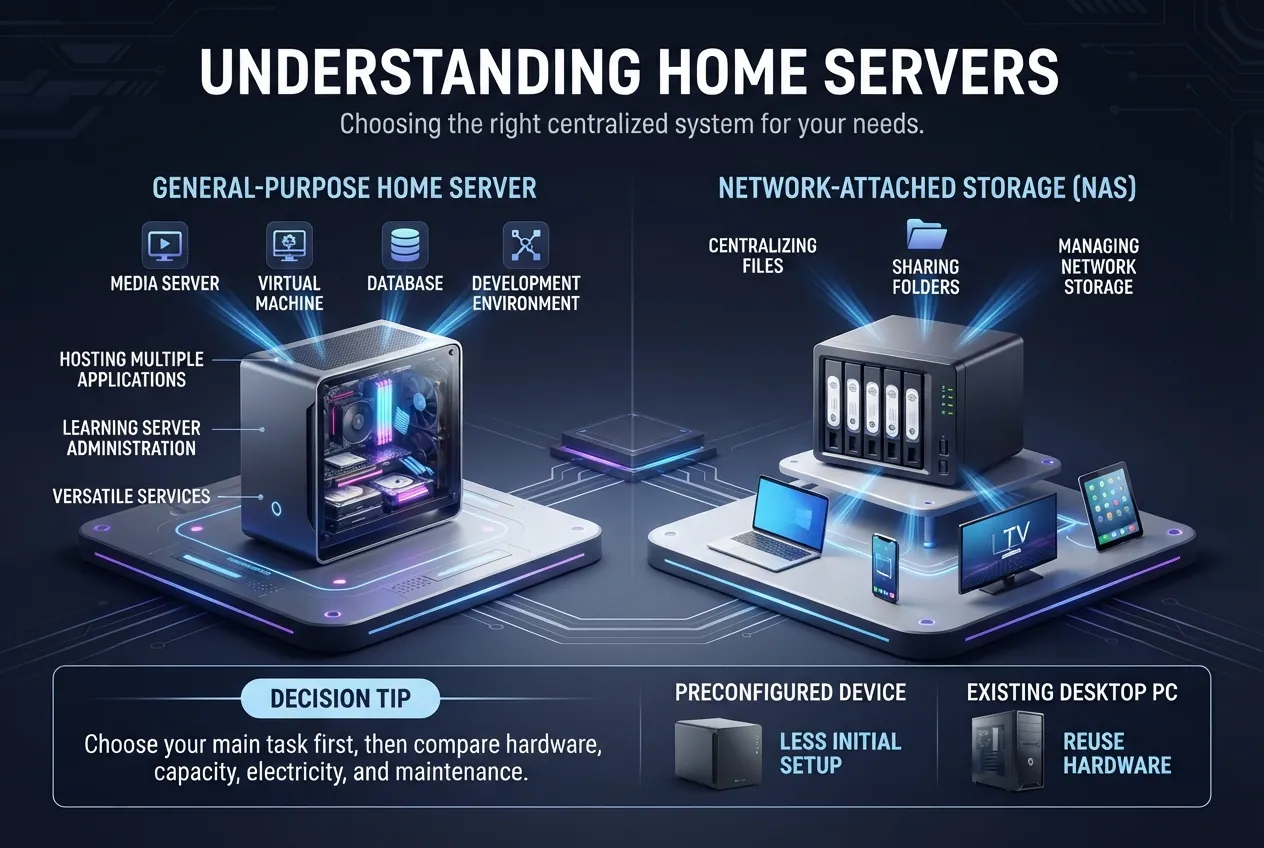
| Option | Best suited for |
| General-purpose home server | Running multiple types of applications, hosting services, and learning server administration |
| Network-attached storage (NAS) | Centralizing files, sharing folders, and managing network storage |
| Preconfigured device | Beginners who prefer a specialized system with less initial setup |
| Existing desktop PC | Users who want to reuse compatible hardware they already own |
Decision tip: Choose your main task first, then compare hardware requirements, storage capacity, electricity use, and maintenance needs. Some NAS devices also support additional applications, so check the features of the specific model.
What Is a Home Server?
A home server is a computer that runs one or more services for other devices connected to your home network. These services might include storing files, streaming media, sharing documents, or controlling compatible smart-home devices.
The word server describes the computer’s role, not a particular type of hardware. A regular desktop PC can become a server when it runs software that provides services to other computers, phones, TVs, or tablets.
For example, imagine that you keep family photos on a desktop computer. You want to view those photos on your laptop and phone without manually copying them to each device. You could configure the desktop as a home server and set up a file-sharing or synchronization service.
Your desktop would store the files and provide access. Your laptop and phone would request those files when needed.
A home server can stay switched on so its services remain available, although some setups use sleep schedules or power-management settings. A dedicated device may use less space and power than an older desktop, but the result depends on the hardware and workload.
Unlike a public cloud service, a home server gives you more direct control over the device and its data. However, you also become responsible for its maintenance, security, and backups.
How Does a Home Server Work?
A home server works by receiving requests from other devices and responding with the information or service they need. Most home servers connect to a router, which allows devices on your home network to communicate.
A basic setup usually has four main parts:
- Server hardware: The computer or dedicated device running the services.
- Server software: The operating system and applications that handle requests.
- Network connection: Usually a router or network switch, with Ethernet or Wi-Fi connecting devices.
- Client devices: The phones, computers, TVs, and other devices that use the services.
Consider a media server as an example. You install media-server software on a computer and add your personal movie and music collection. A compatible TV or phone connects to the server and requests a video. The server reads the file and sends the media to that device.
The Jellyfin quick-start guide explains this process for its open-source media-server software.
The same basic idea applies to file sharing, backups, smart-home control, and many other services. The applications and their requirements change, but the server’s role remains similar.
Local Network vs. Remote Access
A home server can work locally without being publicly accessible on the internet.
For example, your laptop might access a shared folder while connected to your home Wi-Fi. This uses your local network. Your internet connection may be unavailable, yet locally hosted services can continue working if the server, router, and relevant devices remain powered and connected.
Remote access is different. It allows you to reach a service when you are away from home, such as viewing your files while traveling.
Remote access usually requires additional network or secure-access configuration. Some services also rely on internet-based accounts or cloud integrations.
You should not expose every server application directly to the public internet. A properly configured VPN or another trusted, documented remote-access method can help you connect more securely.
What Is a Home Server Used For?
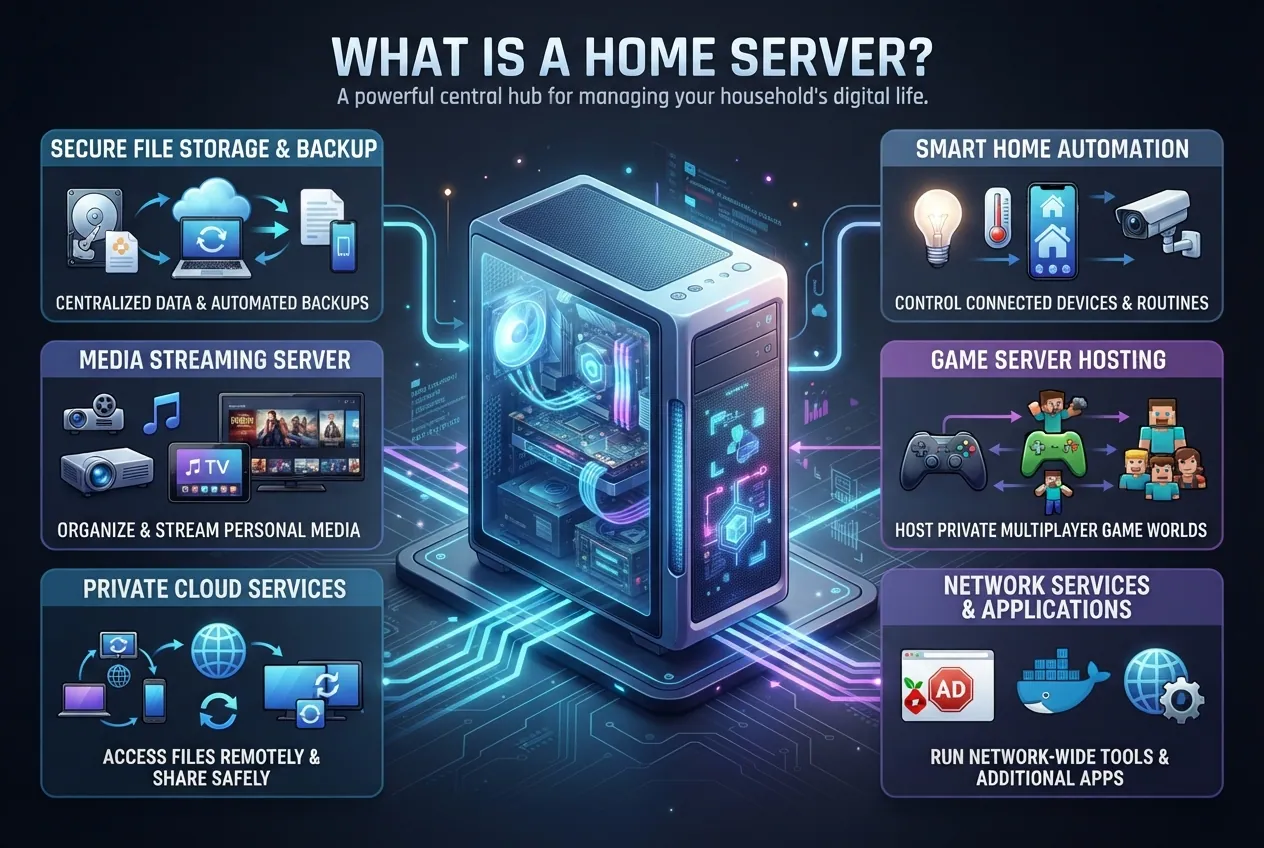
A home server can handle several jobs at once, provided the hardware and software support them. Here are some of its most useful applications.
1. Store Files and Back Up Devices
A home server can provide a central place for documents, photos, videos, and other files. Instead of keeping separate copies on every computer, your devices can access shared folders on the server.
You can also use backup software to copy important files from your laptops and other devices to server storage automatically.
For example, a family could store its photo library on a home server and configure computers to back up important documents to it. This can simplify access and make it easier to manage files in one location.
However, a server is not automatically a complete backup solution. If the server’s only storage drive fails, the data may be lost. A fire, theft, malware infection, or accidental deletion could also affect the files.
For important information, follow a separate backup plan. One established approach is the 3-2-1 rule: keep three copies of your data, use two different types of storage media, and keep one copy off-site. Synology’s backup and data protection guide explains the reasoning behind this approach.
2. Stream Movies, TV Shows, and Music
A media server organizes a personal media collection and makes it available to compatible devices.
For example, you could store music and video files on a computer running Jellyfin. You could then use supported client apps to access that collection from a laptop, phone, or television.
This can be helpful when you want to manage your own media library without keeping the same files on several devices.
Streaming quality depends on the server’s processing power, the client’s capabilities, network speed, and the video format. Some media can play directly, while other files may need real-time conversion, which can require more CPU or GPU power.
A small, low-power computer might handle simple file streaming comfortably but struggle with several demanding video conversions at once.
Use media you have the right to store and access, and check software compatibility before purchasing hardware for a particular streaming workload.
3. Create a Private Cloud for Files
A home server can run software that provides features similar to online file-storage services.
For example, Nextcloud supports file access, sharing, and synchronization across supported desktop and mobile clients.
You might use such a setup to synchronize work documents between your laptop and desktop, share files with family members, or access selected documents through a browser.
The main benefit is greater control over the system and where its data is stored. The trade-off is that you must configure and maintain the service, manage access permissions, and plan for secure remote connections if you need access away from home.
Self-hosting also does not automatically eliminate every privacy risk. Software vulnerabilities, weak passwords, misconfigured access, and missing backups can still cause problems.
4. Control Smart-Home Devices
A home server can run smart-home software that connects compatible devices and coordinates automations.
For example, Home Assistant can run on a Raspberry Pi, a suitable computer, or dedicated hardware. Depending on supported devices and integrations, you might use it to control lights, monitor sensors, or create automation routines.
Imagine setting up an automation that turns on compatible lights when a motion sensor detects activity during certain hours. A home automation system can manage that rule rather than requiring you to control the devices individually.
Not every smart-home device works with every platform. Before choosing hardware, check the required radio adapters, communication protocols, device support, and whether a feature relies on a manufacturer’s cloud service.
Some local automations can continue working when the internet is down, but cloud-dependent devices or integrations may lose certain functions.
5. Run Game Servers
A home server can host a private multiplayer game world for friends or family.
For example, the official Minecraft: Java Edition server download lets users host their own multiplayer server. That download is specifically for Java Edition, so it should not be treated as a universal server for every Minecraft version.
A dedicated game server can keep a world available without requiring the player’s everyday gaming computer to host it. However, the necessary processor, memory, and network capacity depend on the game and the number of players.
If other people need to connect over the internet, the setup also requires careful access and security planning. Hosting a game server is therefore a useful project for learning networking, but it is not always the easiest first server project.
6. Run Network Services and Other Applications
A home server can run additional services for your household.
One example is Pi-hole, which filters DNS requests to help block certain ads and trackers across devices using the configured DNS service. It needs appropriate network configuration, and it cannot reliably block every advertisement or tracker.
More advanced users can host websites, development tools, or email services. Home email hosting is especially demanding because reliable delivery involves domain and mail configuration, spam controls, and other technical requirements.
You can also use Docker to run applications in containers, which separate applications and their dependencies from the host system. The Docker overview explains how containers work.
These additional services offer flexibility, but beginners do not need to install everything at once. Starting with one service makes it easier to troubleshoot problems and understand how the server behaves.
What Are the Benefits and Limitations of a Home Server?
A home server can be useful when several devices need the same files or services. However, its benefits depend on your actual needs.
| Benefits | Limitations |
| Central place for files and shared services | Hardware, drives, and accessories cost money |
| Greater control over local data | You manage updates and security |
| Convenient file access across devices | Power and network outages can interrupt access |
| Supports self-hosted applications and learning | Initial configuration may take time |
| Can run multiple services on suitable hardware | Heavy workloads may need more memory or processing power |
| Can reduce dependence on certain cloud services | Does not automatically provide backups or eliminate cloud dependencies |
A home server may be worthwhile if you regularly share large files, run a media library, need centralized backups, or want to experiment with self-hosted software.
It may not be necessary if you only need occasional file sharing or already have a cloud service that meets your requirements.
Before making a purchase, identify the main problem you want to solve. That decision will help you avoid spending money on processing power, storage, or features you do not need.
Home Server vs. NAS: What Is the Difference?
A NAS, or network-attached storage device, is designed mainly to store and share files over a network. A general-purpose home server is more flexible and can run many types of applications.
The two categories overlap. Many NAS devices support additional applications, while a computer-based home server can provide network storage.
| Feature | General-purpose home server | NAS |
| Main purpose | Run different services and applications | Store, organize, and share files |
| Hardware | Old PC, mini PC, or a suitable custom build | Dedicated storage appliance or compatible system |
| Software | Often offers broad operating-system choices | Usually has an interface and tools focused on storage |
| Expansion | Depends on the computer and available ports | Depends on the model and number of supported drive bays |
| Ease of use | Can require more configuration | Often easier for straightforward storage tasks |
| Best suited for | Multiple services, experiments, or flexible computing | Central storage, shared folders, and backups |
The exact features depend on the chosen device. Some NAS models support applications, containers, or virtual machines, while some home servers are used almost entirely for file storage.
For example, the TrueNAS hardware guide describes using compatible computer hardware for a dedicated storage system. Its current 25.10 guide lists an x86-64 processor, 8 GB of memory, an SSD boot device, and two equally sized storage devices for a single storage pool. These are TrueNAS-specific requirements, not requirements for every home server.
Which should you choose? A NAS is a sensible option when centralized file storage is your main goal and you prefer a purpose-built interface. A home server built from a PC may suit you better when you also want to run several independent applications or learn server administration.
Neither option is automatically better for everyone.
What Hardware Do You Need for a Home Server?
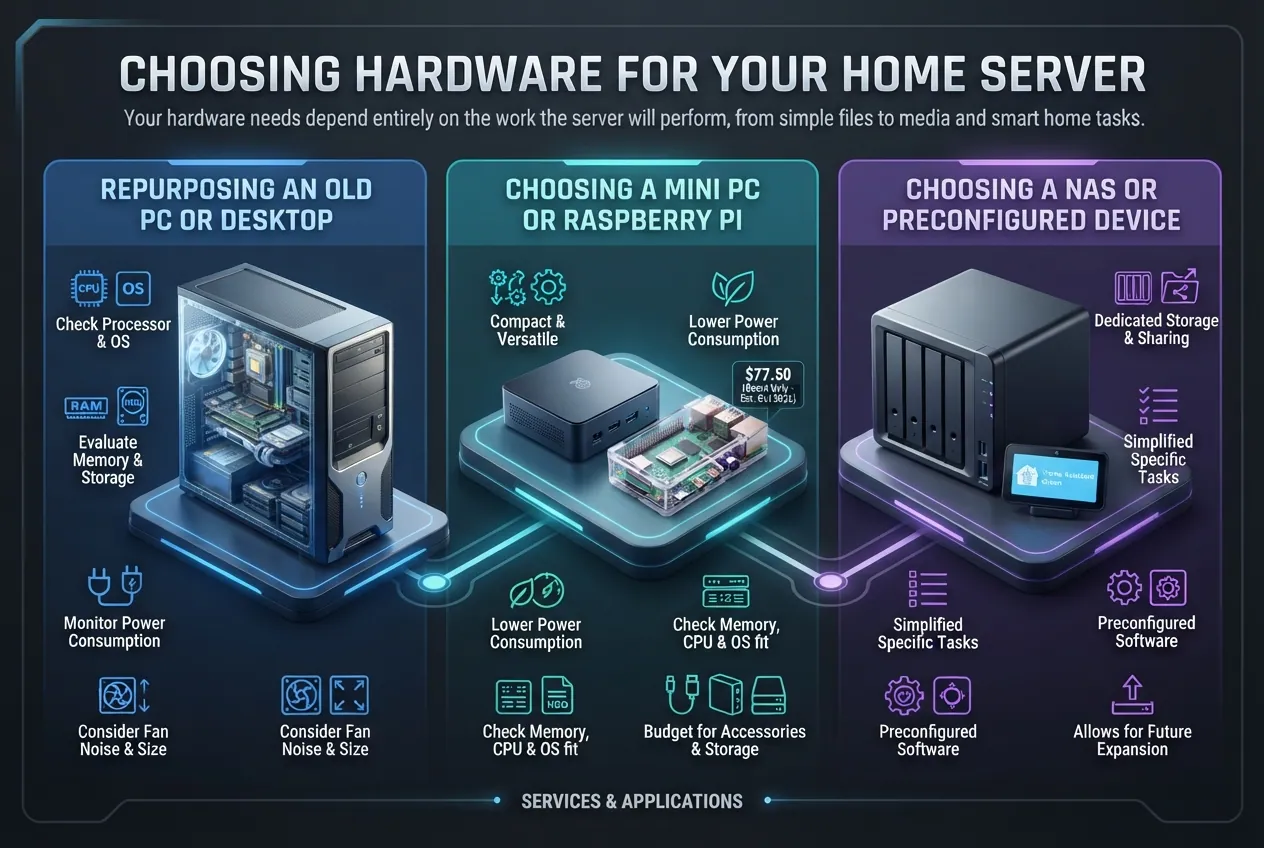
The required hardware depends on the work the server will perform. A simple file server has different needs from a computer that runs multiple virtual machines or converts high-resolution video.
Using an Old PC or Desktop
Repurposing an existing computer can be a practical way to start. You may already have a compatible processor, memory, storage, and network connection.
Before reusing it, check:
- Whether the processor and operating system support your intended software.
- Whether it has enough memory and storage.
- Whether the drives are healthy and have enough capacity.
- How much electricity it uses while running.
- Whether its fan noise, cooling, and physical size are suitable for your home.
An older PC is not automatically the cheapest option. A system that consumes more power or needs replacement drives might cost more over time than a smaller device.
Choosing a Mini PC or Raspberry Pi
A mini PC can offer a compact design while supporting general-purpose operating systems and multiple applications. It may suit file services, lightweight applications, development projects, and some media workloads.
A Raspberry Pi is a small single-board computer that can work well for suitable low-power tasks. Its capabilities vary by model, available memory, storage, and software requirements.
For a current price reference, Raspberry Pi’s October 1, 2026, announcement lists the 2 GB Raspberry Pi 5 at $77.50. That is the board price, not the complete cost of a working server. You may also need a power supply, case, cooling, storage, and suitable cables. See the official Raspberry Pi price announcement.
Do not buy a device solely because its initial price is low. Confirm that its memory, processor, storage connections, and supported operating system fit your planned services.
Choosing a NAS or Preconfigured Device
A dedicated NAS may be more suitable when storage and shared folders are your main goals.
A preconfigured device can also simplify a specific task. For example, Home Assistant Green comes with Home Assistant already installed and has a recommended US MSRP of $199, excluding taxes. This is a dedicated smart-home hub, not a general-purpose PC replacement. Check the official Home Assistant Green page for its current details.
Whatever you choose, allow room in your budget for any required storage, accessories, and backup hardware.
Which Home Server Software Should You Choose?
Hardware is only part of the decision. You also need software that suits the service you want to run.
| Software or platform | Typical purpose | Beginner consideration |
| Ubuntu Server | General server tasks, networking, file sharing, and applications | Flexible, but some administration may require command-line skills |
| TrueNAS SCALE | Network storage and related applications | Best considered when storage management is a priority; check its hardware requirements |
| Windows | File sharing and compatible Windows applications | May be familiar to users already comfortable with Windows |
| Jellyfin | Organizing and streaming a personal media library | Requires a compatible host and client devices |
| Nextcloud | File sharing and synchronization | Needs suitable installation, storage, and maintenance |
| Home Assistant | Smart-home control and automation | Device compatibility and installation type matter |
| Docker | Running applications in containers | Useful for multiple services, but adds concepts that beginners may need to learn |
These options are not direct substitutes for one another. Ubuntu Server, TrueNAS, and Windows are operating-system choices; Jellyfin, Nextcloud, and Home Assistant are applications or platforms for particular tasks. Docker provides a way to package and run applications.
You do not have to learn every tool. If your goal is a basic media server, begin by checking Jellyfin’s requirements. If you primarily want network file storage, compare NAS options and storage-focused software. If you want to automate compatible home devices, start with Home Assistant’s supported installation methods.
How Much Does a Home Server Cost?
The total cost depends on whether you reuse existing hardware, buy a small computer, or purchase a dedicated NAS.
Your budget should account for the complete setup, not only the main device.
| Cost category | What to consider |
| Main hardware | Existing PC, mini PC, single-board computer, or NAS |
| Storage | Hard drives, SSDs, or additional drives for storage capacity and redundancy |
| Accessories | Power supply, case, cooling, Ethernet cable, or adapters if required |
| Backup | External drive or a separate backup location |
| Electricity | Power consumption while the server operates |
| Maintenance | Replacement hardware and time spent on updates and troubleshooting |
Some software is available without a purchase price, but free software does not make the entire system free. You may still pay for hardware, storage, electricity, internet access, and optional services.
Estimate Your Electricity Costs
A home server that stays on all day uses electricity even when it is idle.
You can estimate annual electricity consumption with this formula:
Annual electricity use (kWh) = average watts ÷ 1,000 × 24 × 365
Then multiply the annual kilowatt-hours by your electricity rate.
The following examples use the U.S. Energy Information Administration’s 2026 year-to-date average residential electricity price of 18.19 cents per kWh through July. These 2026 figures are preliminary estimates, and your actual utility rate may differ. See the EIA electricity price table.
| Average power draw | Estimated annual electricity cost | Approximate monthly cost |
| 15 watts | $23.90 | $1.99 |
| 40 watts | $63.74 | $5.31 |
| 100 watts | $159.34 | $13.28 |
These examples assume the system runs continuously at the stated average power draw. They exclude the purchase price and any other costs. Your server’s actual consumption may vary with drive activity, processor load, cooling, and power-management settings.
A plug-in power meter can help you measure the actual draw of a running setup.
For an occasional file-sharing task, paying for a computer that operates continuously may not be necessary. For a service that must remain available around the clock, include electricity and maintenance in your decision.
How to Set Up a Home Server: Basic Steps
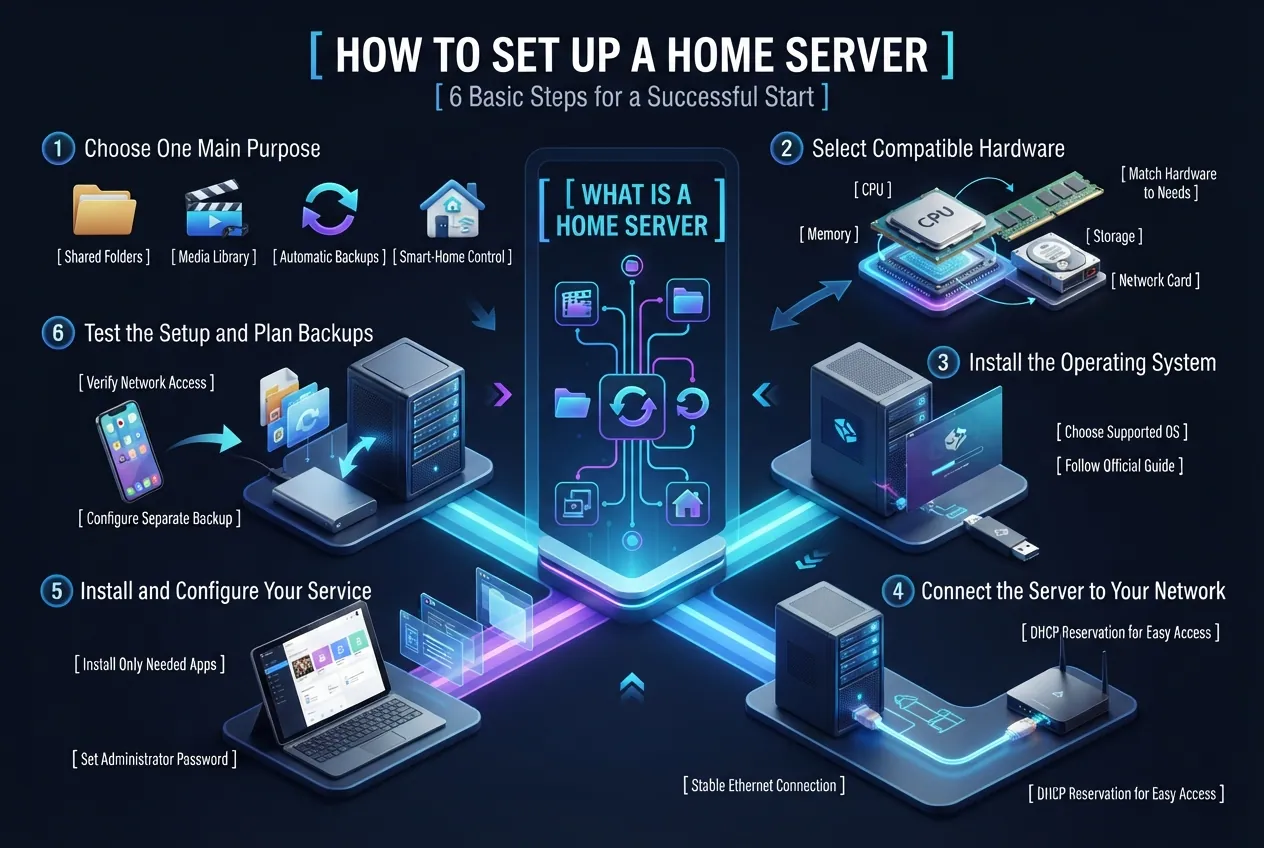
You do not need to install several services on the first day. A simple setup is easier to understand and troubleshoot.
1. Choose One Main Purpose
Decide what you want the server to do. You might begin with shared folders, a media library, automatic backups, or smart-home control.
Your chosen purpose determines which hardware, operating system, and storage arrangement you need.
2. Select Compatible Hardware
Check the computer’s processor, memory, storage, network connection, and expected power use. If you plan to reuse an old PC, inspect the condition of its drives before trusting it with important data.
Choose hardware that meets the software’s documented requirements. Avoid paying for high-end components unless your workload needs them.
3. Install the Operating System
Choose a supported operating system for your intended task. Follow the official installation guide and confirm that you have the correct installation media.
Before reinstalling or modifying an existing computer, back up any data you need to keep. Installing an operating system or changing its partitions can erase files.
For Ubuntu Server, begin with the official Ubuntu Server documentation. For a storage-focused system, use the appropriate version of the TrueNAS documentation.
4. Connect the Server to Your Network
Connect the computer to your router or network switch. Ethernet is often a practical choice for a stationary server because it provides a stable wired connection.
Use your router’s supported configuration options to help keep the server easy to find on the network. A DHCP reservation, for example, can assign the server the same local IP address without manually configuring a static address on every device.
5. Install and Configure Your Service
Install only the application you need and follow its official instructions.
For a media server, this means adding your media library and checking access from a compatible client. For file sharing, it means creating the necessary folders and permissions. For smart-home control, it means setting up the platform and checking supported device integrations.
Create a strong administrator password and limit access to people who need it.
6. Test the Setup and Plan Backups
Check the service from another device on the same network. Confirm that you can reach it, access the expected files or controls, and use its main functions.
If the service does not work, check the network connection, application status, permissions, and software documentation before making disruptive changes.
Finally, configure a separate backup and test that you can restore important data. A working server is useful, but it is not reliable until you have a way to recover from mistakes or hardware failure.
How to Keep Your Home Server Secure and Reliable
A home server can store important personal information or provide access to services throughout your household. Security and maintenance should therefore be part of the setup from the start.
Use strong authentication. Protect administrator accounts with unique, strong passwords. Enable multi-factor authentication when the service supports it, particularly for remote access.
Install updates. Keep the operating system and applications updated according to their official guidance. Updates can address security problems and compatibility issues.
Limit access. Give each user only the permissions needed for their tasks. Avoid exposing administrative interfaces or unnecessary services to the public internet.
Be cautious with remote access. Use a well-documented secure-access method and understand what devices or services it exposes. Avoid copying unfamiliar router or firewall instructions without checking the security implications.
Monitor storage and backups. Check drive health and investigate warnings. Keep another copy of important files on separate storage, and consider an off-site copy for data you cannot afford to lose.
Plan for outages. A server can become unavailable if its computer, router, network connection, or electricity supply fails. Decide which services need to remain available and whether additional backup power is appropriate.
Why a Server Is Not a Backup by Itself
Storing files on a home server may protect you from losing a file that existed only on one laptop, but it does not protect against every cause of data loss.
For example, a server and its drives could be stolen together, damaged by the same electrical event, or affected by accidental deletion. A separate backup stored in another location offers additional protection.
Treat data recovery as part of your design, not as a task to postpone until something goes wrong.
Frequently Asked Questions
Can you use an old PC as a home server?
Yes. An old PC can work if its processor, memory, storage, and operating system support your intended services. Check power use, drive health, cooling, and noise before deciding to keep it running continuously.
Does a home server need an internet connection?
Not always. A server can provide local file sharing or other local services over your home network without an active internet connection. Remote access, online updates, cloud integrations, and internet-based content may require connectivity.
How much electricity does a home server use?
It depends on the hardware and workload. A system averaging 15 watts costs about $23.90 per year at an electricity rate of 18.19 cents per kWh, assuming continuous operation. Higher average power draw increases the cost.
Is a home server the same as a NAS?
No. A NAS focuses primarily on network storage, while a general-purpose home server can run a wider range of applications. Some NAS systems also support additional services, so compare the capabilities of specific models.
Is it safe to access a home server remotely?
It can be safe when configured carefully, but remote access creates additional security responsibilities. Use a trusted access method, strong authentication, current software, and restricted permissions. Avoid exposing services publicly unless you understand and can manage the risks.
Choose Your First Home Server
A home server can be a useful way to organize files, stream personal media, manage backups, or control compatible smart-home devices. You can start with an existing computer, choose a mini PC, or buy a dedicated NAS or specialized device.
The sensible first step is to identify the task you want to solve. Then choose hardware and software that meet that need, calculate the ongoing costs, and build in security and backups before relying on the system for important data.
You do not need the most powerful machine or the largest collection of applications. Start with one useful service, learn how it works, and expand only when you have a reason to do so.
Disclaimer
Costs, supported devices, software versions, compatibility, installation requirements, and individual needs vary by setup. Check official documentation and current local prices before buying, and seek qualified help for electrical work, hazardous hardware repairs, product-safety issues, account or data recovery, and legal or licensing questions.